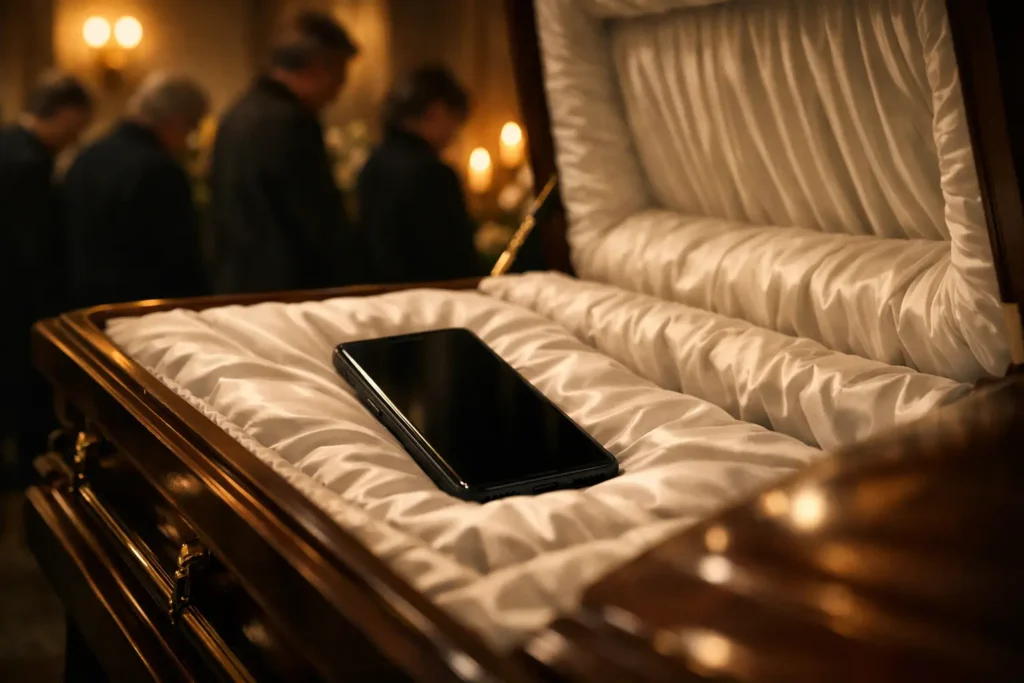
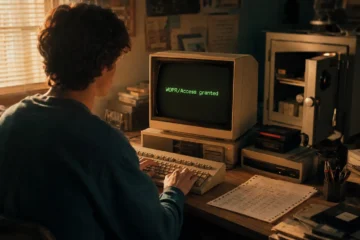
Will Apple’s Face ID work after you die? Do your loved ones know how to access your email? How about your bank accounts, or your phone?
I’ve thought about this a lot. When I managed a checking account for an industry group, I made sure that if anything happened to me, a family member would be able to share access information with organization officers.
Unfortunately, I may not be typical. Many of us manage our digital accounts like we’re going to live forever.
In a recent study, only 24% of U.S. adults said they included instructions for their online accounts in their wills. And half of Americans with spouses have online accounts with real monetary value their spouses don’t know anything about.
Instead of tossing and turning tonight wondering how you might cope after an inevitable loss, with some planning and candid conversations today, you can avoid hours of headaches while you grieve.
Head Start for Apple Families
No, Face ID will likely not work after a person dies.
Apple’s built-in security setup causes Face ID to fail after 48 hours of device inactivity or four hours without biometric use. Once either limit is met, a passcode is required to access a device.
Since 2021, though, Apple has provided a simple, effective way to allow a trusted person to access a user’s iCloud account info after an owner’s demise; the Legacy Contact.
Once you designate a Legacy Contact, upon your death, the contact can request access to your information from Apple. They’ll need an access key generated when you choose them as your contact and a death certificate.
That information will let Apple give your contact access to much, but not all, of your digital assets. They’ll be able to see email, “photos, messages, notes, files, apps you’ve downloaded, device backups, and more.”
They will not, however, get access to passwords or passkeys if you stored them in iCloud Keychain. If you use Apple Passwords, you could share your entire vault with a loved one who also uses Apple Passwords, but it means they have access to all your online accounts while you’re still alive.
And they will not be able to unlock your iPhone; a challenge which also exists for Android device users.
Google and Android Users Need A Plan
If you run your life with Google’s suite of tools and an Android device, future proofing is a bit more nettlesome.
Google’s Inactive Account Manager allows a user to set a time threshhold after which contacts they designate receive access to selected information. Gmail, Google Photos, etcetera can be provided to up to 10 contacts you choose but only after an account is dormant for from three to 18 months.
One key nuance here is that contacts receive downloads of the designated information. They do not gain access to, for example, the deceased’s Gmail inbox. They will not be able to send and receive messages as the person.
Google may work directly with loved ones to assist with providing access, but its a process over which they have no control. Waiting for months may be untenable at best.
And in terms of accessing a locked Android device, to protect users, the only way to get into an Android phone is with the user’s lock code or account access.
Regardless, there is a way to ensure your loved has access to the information they need to open your devices.
Using a third-party password manager like Bitwarden or 1Password can provide much-needed peace of mind along with throwing your family a data recovery lifeline.
Password Managers a True Lifesaver
I’ve written extensively about Bitwarden. For my mind, it is the best open source, third-party, end-to-end encrypted, password manager on the market.
It’s Emergency Access features is one reason why. It allows me to select people I trust who can, at any time, request access to my entire vault of logins, payment cards, secure notes, etcetera.
No questions asked. No support rigamarole. It’s a truly standout feature.
1Password, on the other hand, directs users to print and store an Emergency Kit. This may work for you, but it assumes you had told people where you stored it and they can get to when they need it.
For my money, Bitwarden’s Emergency Access is a better, more user-friendly feature while still preserving the security of my digital info. My contact will even be able to use the two-factor authentication codes I have stored in Bitwarden provided they have a premium account.
Where Do You Begin?
First and foremost, talk to the people closest to you. Tell them where your digital accounts live.
Then set up a system which will care for them once you’re gone like they care for you today.
If you use Apple devices, designate a Legacy Contact today and create an emergency kit containing:
Device passcode and PIN for every device
Apple Account ID, password, and 2FA backup codes
If you use Android devices, create an emergency kit containing key information:
Device passcode and PIN for every device
Google Account password
Google 2FA backup codes
Samsung, or other device, account password and 2FA backup codes
Use a third-party password manager and enable its emergency features.
Store your emergency kit in your third-party password manager to ensure complete, simplified access to all your digital accounts. Your emergency contact will gain access via the manager’s emergency access feature, eliminating the need to separately share a master password.
Much of this you can do yourself. All it takes is a willingness to have candid conversations which many of us avoid.
If you want help getting started with a password manager, though, or switching from Apple Passwords or Google Password Manager, I can assist.
You want to give your family a head start instead of a headache. Let me help you set up Bitwarden, enable Emergency Access, and walk away with complete peace of mind. Full details of my password manager service are here.
What I’ve been doing in my basement lately is not pretty. The groaning. The straining. Sweat stinging my eyes. Yet four days a week, I walk down the basement stairs and spend 30 minutes alone. Because Read more
There’s a lesson to heed from the National Security Agency’s recent success in using Claude’s Mythos model to surface vulnerabilities in its own systems in hours. The lesson isn’t that you should bury gold bars Read more
What do you do when your very first paying customer, the person you shepherded from an effective but improveable password system onto Bitwarden, sends you an article on a Friday evening about possible changes with Read more